
Discover Better
AI Video Skills.
Free, practical prompt skill packs and production bibles designed to keep character faces, camera pacing, and scene lighting consistent across Midjourney, Runway, Kling, and Sora.
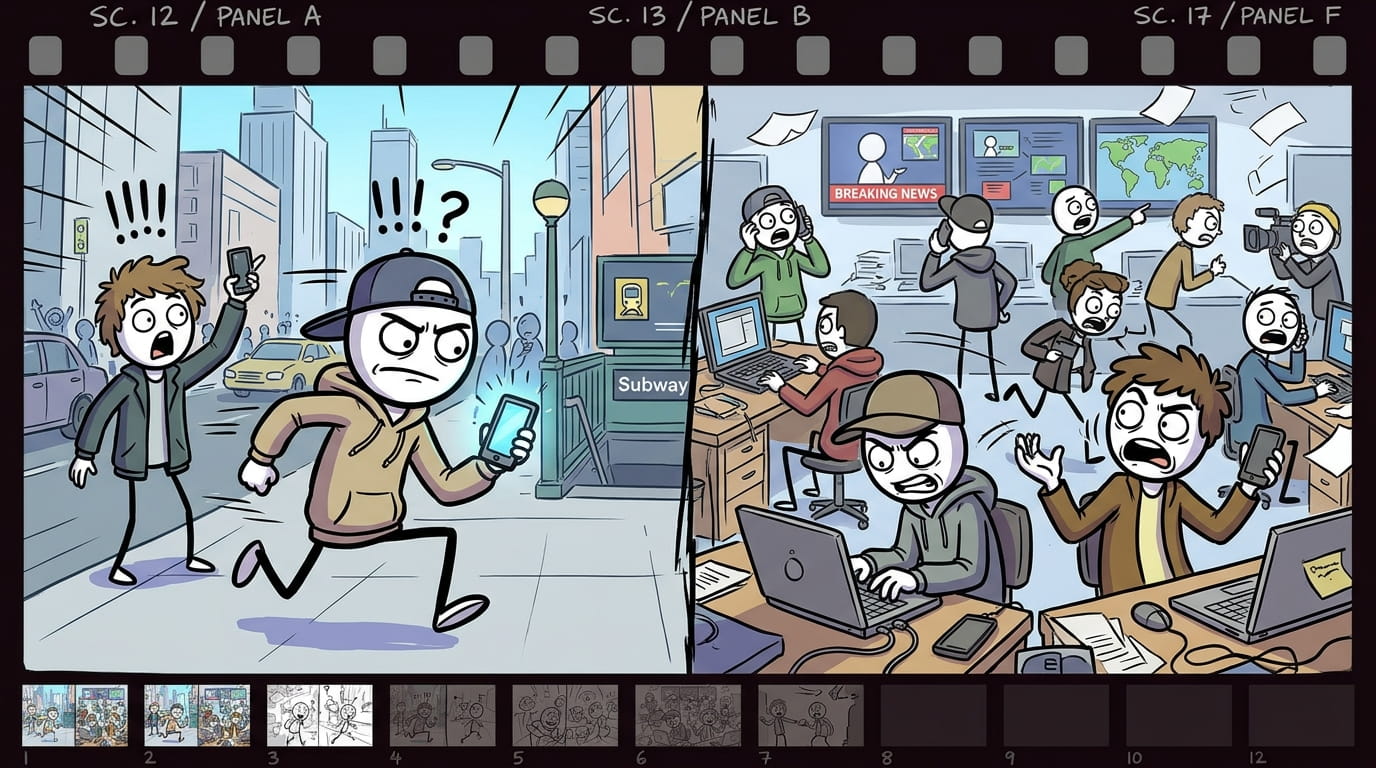
Modern Stickman Documentary Engine turns a topic, a pasted script, or a single custom scene into a full documentary-style video package. It writes a proven YouTube narration formula (cold open, anthology chapters, escalating stakes, named people, a dark-humor beat) in short 8-10 word lines, then converts every line into a matching cartoon stick-figure image prompt. Every prompt follows one locked visual template — same opening, same pacing, same closing structure — so the whole video stays visually consistent from scene 1 to the last scene, no matter how long the script runs. - Start the skill and answer the opening question: do you have a custom scene, your own script, or do you want one generated? - No script? Say “generate it” → give a topic, or ask for topic suggestions by category (turn on web search for fresh, current options) → pick one. - Choose length: a 1-2 min reel (short script, 200 words) or a 6-10 min long video (longer script, delivered in 2 parts — say “go”/”continue” to get part 2). - Have your own script? Just paste it. Either way, before any images are made you’ll be asked for the setting (modern city, corporate office, tech industry, stock market, social media world, rural village, war zone, etc.) — this stays locked for the whole video. - Image prompts are generated one per script line, labeled scene 1 (line text), scene 2 (line text)... Longer scripts are delivered in batches of 30 — say “continue” to get the next batch. > Tip: soldiers/police/guards automatically get combat helmets; everyone else gets a cap or normal hair — this happens on its own, no need to specify. Use the labeled prompts in your image generator of choice, one at a time or in order, to storyboard the full video. > Tip: use one image-generation tool and one consistent aspect ratio for every scene in a single video.

The complete production prompt framework for Vox-style editorial explainer videos. Contains standardized prompt tokens for halftone newsprint textures, 2.5D paper cutout collage, kinetic typography layouts, and isometric data graphs. Designed for direct insertion into VidRaft prompt master templates or standalone AI generation tools. - Art Style: Editorial mixed-media collage, halftone vintage newspaper clippings - Color Palette: Desaturated charcoal (161616), off-white parchment (f4efe6), tungsten accent (e8a838) - Motion Notes: Kinetic typography, smooth 2.5D parallax push-ins, rapid rhythmic scene cuts
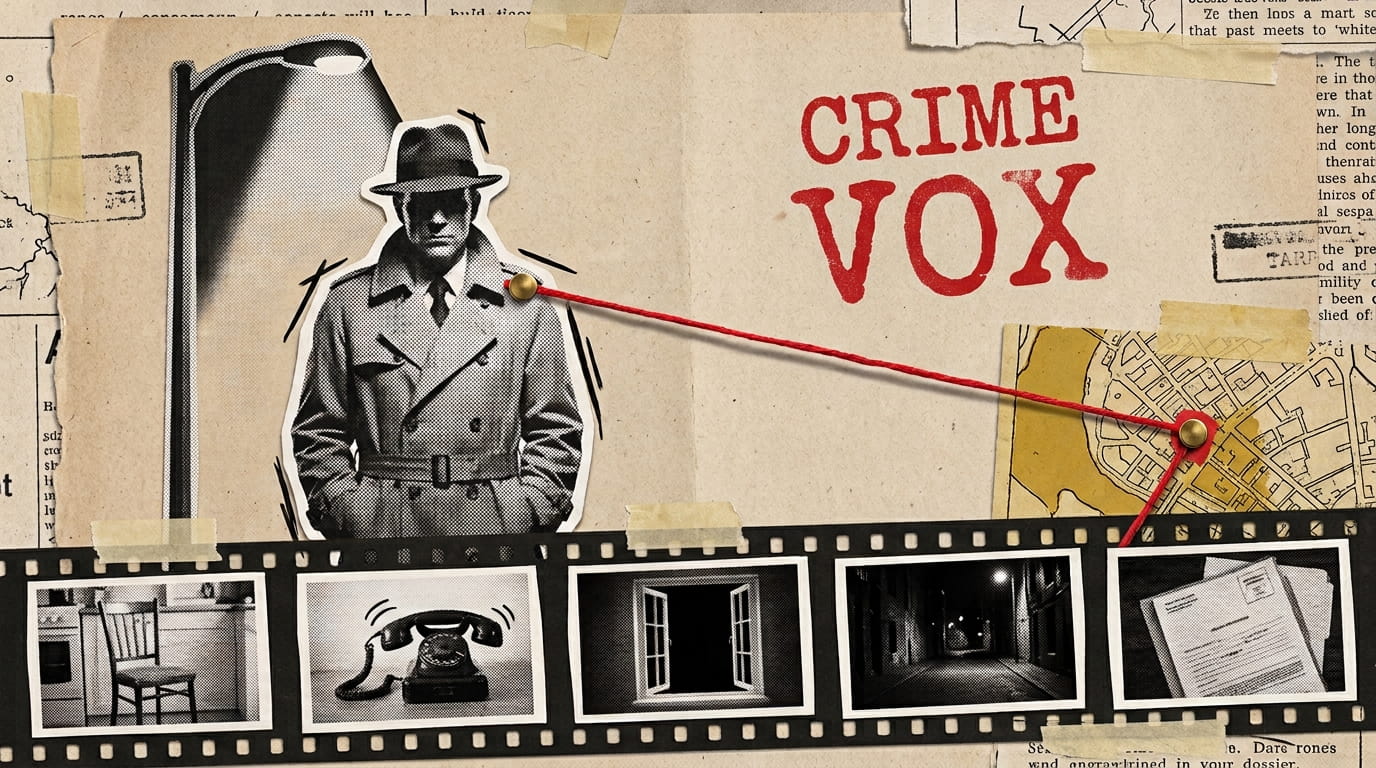
1. Start the skill and answer the three opening questions: "Do you have any custom scene?", "Do you have your own script?", "Do you want me to generate a script for you?" 2. If you want a script: say "generate a script for me", give the topic, choose Reel (1-2 min) or Long video (6-10 min), then pick the language for the script. - Reel: one 200-word script. - Long video: two parts of 800 words each. Reply "go" to get part 2. 3. If you have your own script: say yes, paste it, then say "yes" when asked "Should I start generating image prompts?" 4. If you have a custom scene: say yes, then describe the scene (for example, "a woman outside at night"). 5. When the script is ready, say "yes" to "should I now create scene-by-scene image prompts for you?" 6. Image prompts come as "scene 1 (script line)", "scene 2 (script line)" and so on. A new scene starts after every full stop, and after a comma only when it follows 5 or more words. Scripts with more than 30 scenes arrive in batches of 30. Reply "yes" or "go" to get the next batch. 7. When the images are done, say "yes" to the animation prompts. They come in the same scene labels and the same 30-scene batches. 8. Generate each image from its prompt, then paste the matching animation prompt with that image into your animation tool. Put the clips in scene order in your editor. Tips: - Use one image tool and one aspect ratio (16:9) for the whole set. - Image and animation prompts are always in English. Only the script and voice over use your chosen language. - To change one scene, reply with its scene number and what you want changed. - If the chatbot forgets a rule in a long chat, send: "Follow the workflow in the file."
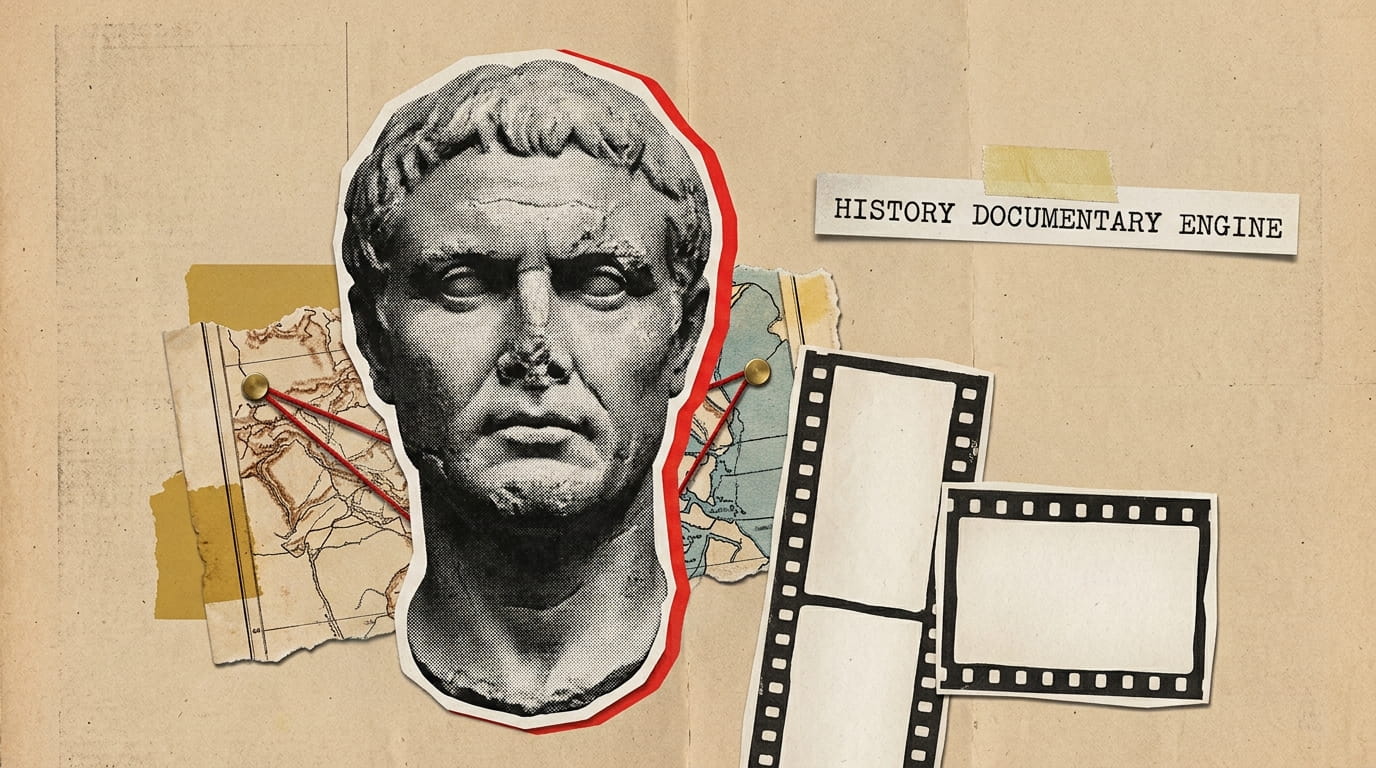
Step 1: Start the engine. Describe what you need, for example "I need history prompts" or "Vidraft history video". The engine will ask three questions: whether you have a custom scene, your own script, or want a script generated. Step 2: Choose your path. Generate a script: pick Custom topic (type your own) or Find Topics (the engine suggests 10-15 ideas, and you pick one by number). Own script: paste your script when asked. Custom scene: describe the single scene you want. Step 3: Choose the video length. Pick a reel (1-2 minutes, 200-word script) or a long video (6-10 minutes, 2 parts of 800 words). For a long video, reply "go" after Part 1 to get Part 2. Step 4: Generate image prompts. When asked "Should I now create scene-by-scene image prompts for you?", reply "yes". You'll get one prompt per scene, labeled scene 1, scene 2 and so on, in batches of 30. Reply "yes" or "continue" to get the next batch. Step 5: Generate animation prompts. When asked about animation prompts, reply "yes". Each scene gets a matching animation prompt in the same 30-scene batches. Step 6: Make your video. Paste each image prompt into an AI image generator to create your scene images. Paste the matching animation prompt into an AI image-to-video tool, along with that scene's image. Add your narration voiceover and edit the clips in order. Tips Keep recurring people, places and objects named the same way in your script so the visuals stay consistent. A reel needs about 10-30 scenes. A long video can need hundreds, so use the batches and keep going until the last scene. Always run the batches in order, and don't skip scene numbers.
Can't find what you need?
Explore our guides, tools and voiceover features to level up your video creation.
Browse Guides
Step-by-step tutorials on character consistency bibles, multi-shot pacing, and prompt engineering.
Use Voiceover
Generate high-quality multilingual narration or clone your own voice with studio 44.1 kHz WAV exports.
Explore Free Tools
Handy client-side video utilities: Bitrate Calculator, Silent Video Checker, and Frame Extractor.